
This demo assumes you've already logged in to cPanel, and are starting on the home screen. Click the "Directory Privacy" icon.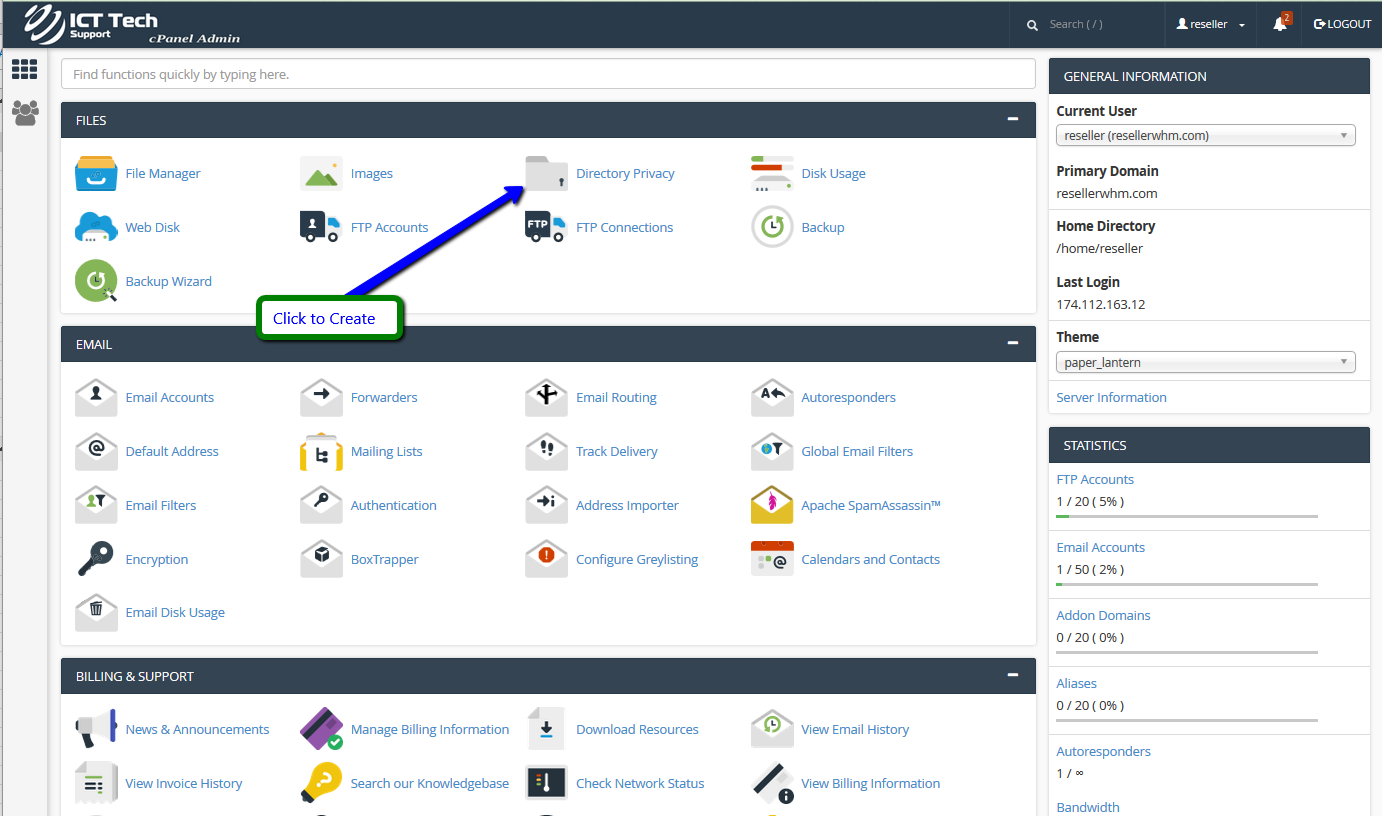
Click on Settings to be sure you are defaulting to Web Root (public_html or www).
Now select the directory you want to password protect by clicking its name.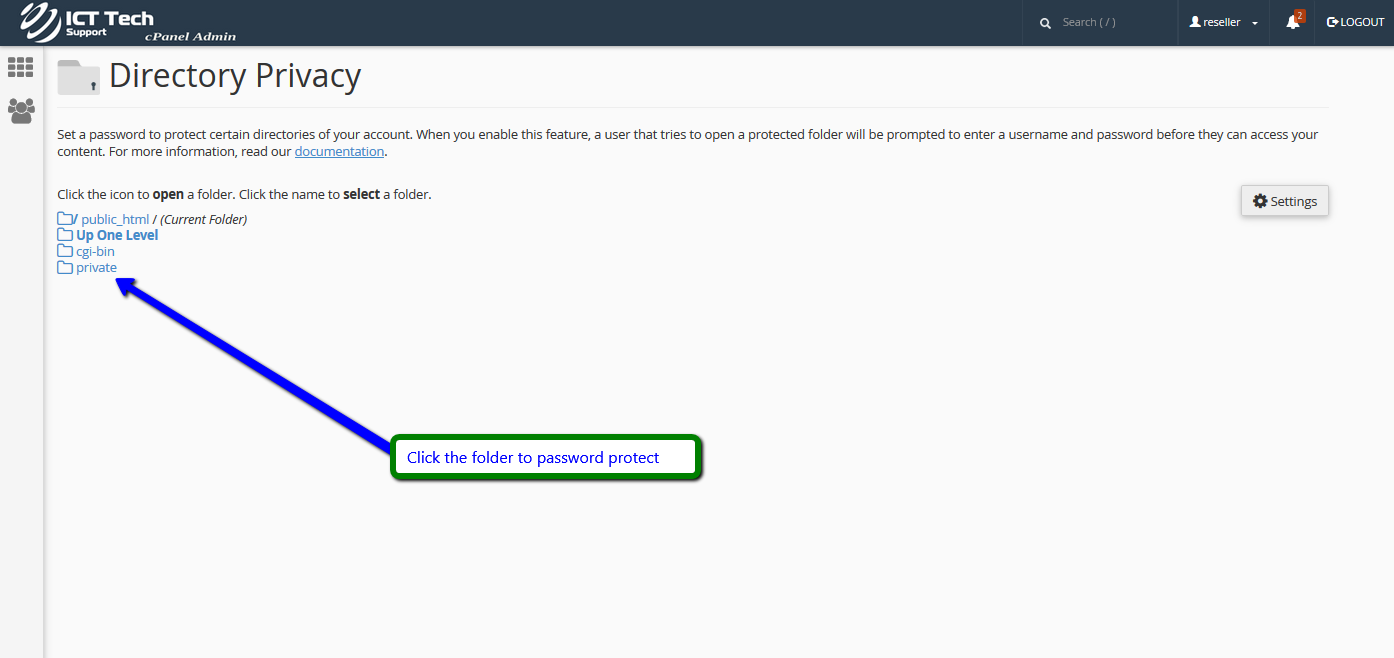
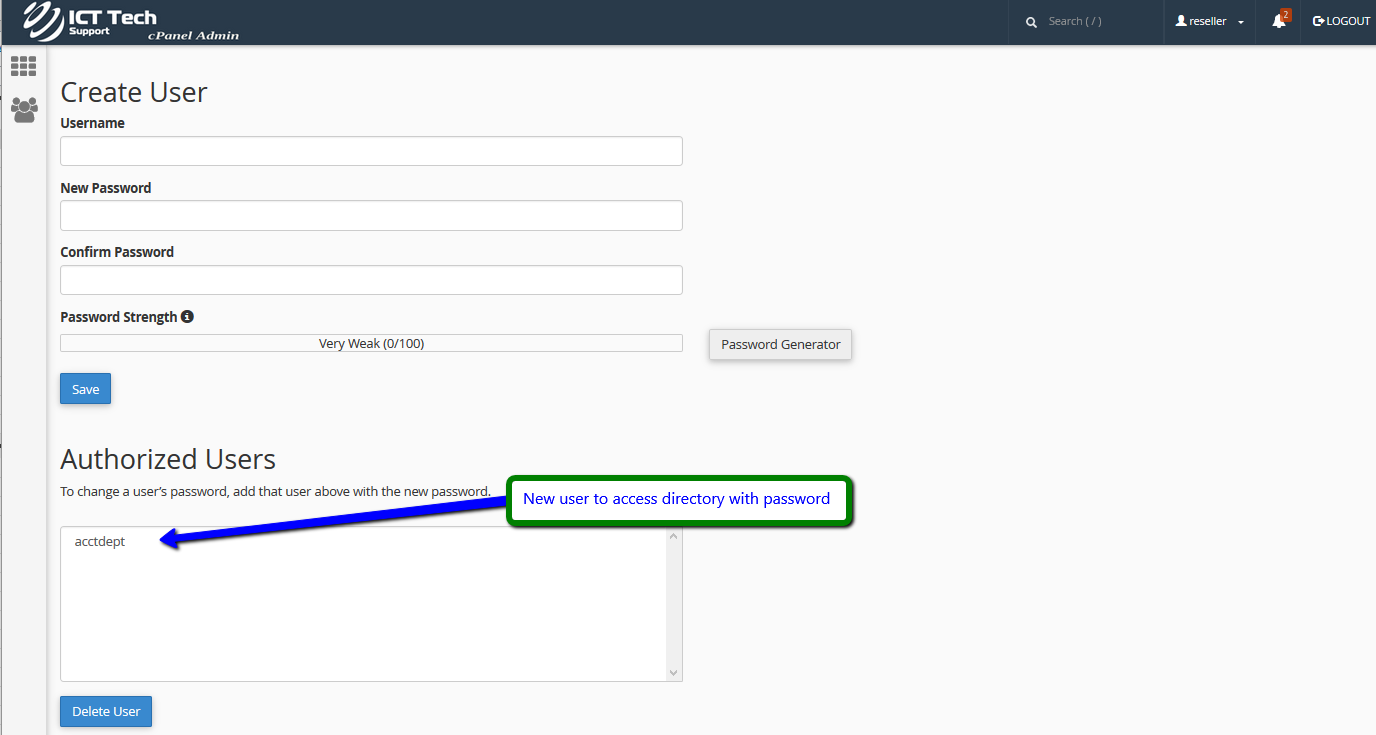
Check the "Password Protect" box, then give a name for the directory, and click "Save". Create a new user with password then click "Save"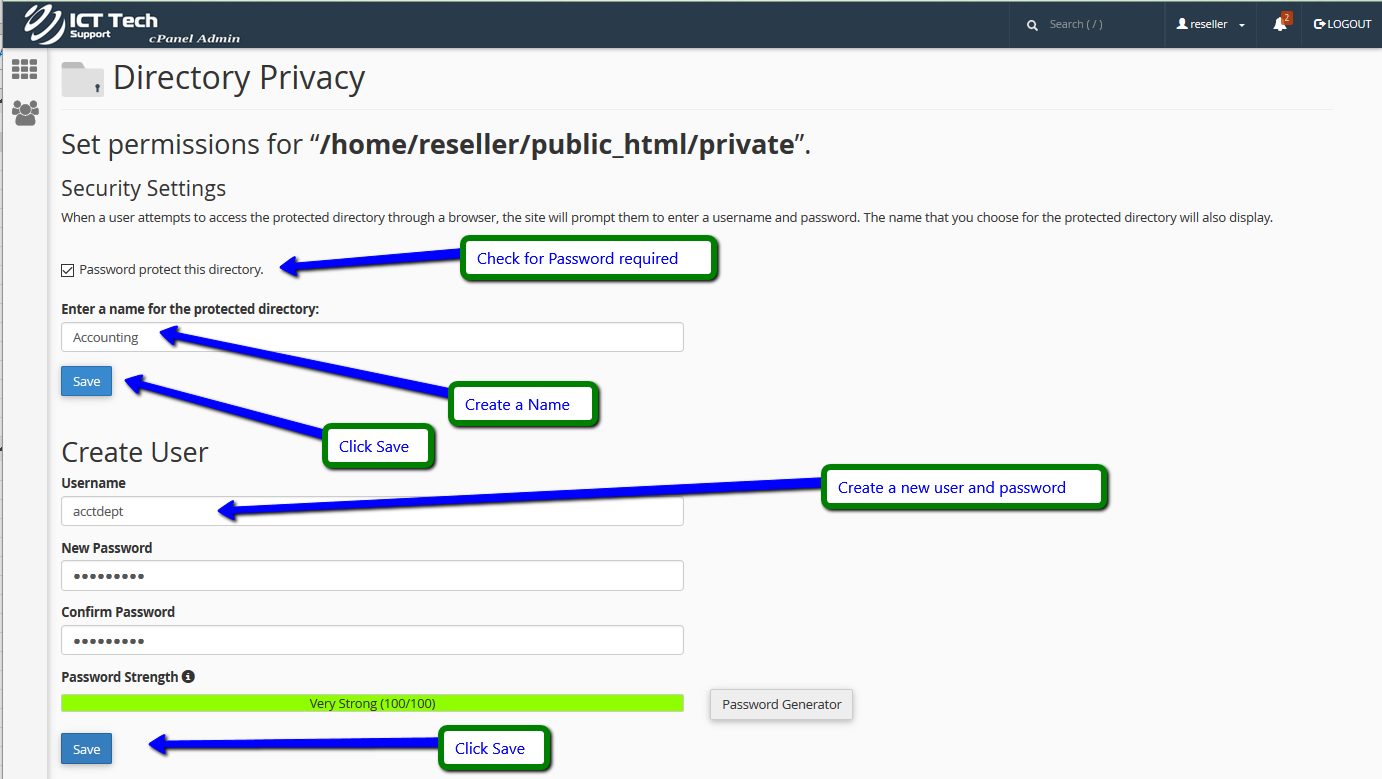
The directory is now protected, and requires a password to enter it via a browser.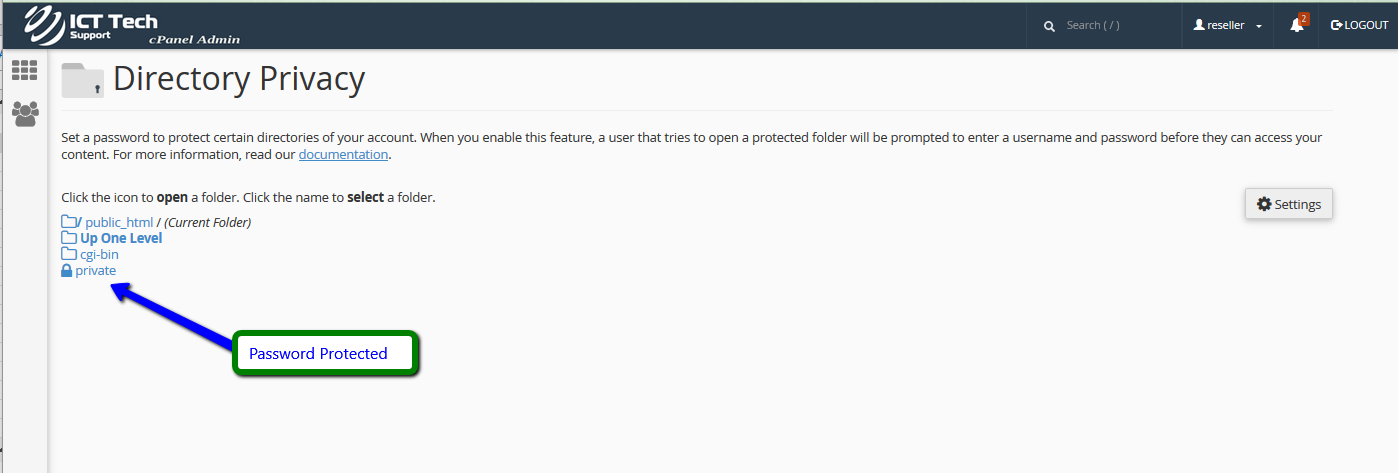
How to Password Protect a Directory Print
- 53
Was this answer helpful?
Related Articles
How to Enable or Disable Greylisting
This demo assumes you've already logged in to cPanel, and are starting on the home screen.Then...
How to Create Additional FTP Accounts
This demo assumes you've already logged in to cPanel, and are starting on the home screen. Click...
How to Check Disk Space Usage
This demo assumes you've already logged in to cPanel, and are starting on the home screen. Now...
How to Create a Subdomain
This demo assumes you've already logged in to cPanel, and are starting on the home screen. Click...
How to Create an Addon Domain
This demo assumes you've already logged in to cPanel, and are starting on the home screen. Click...