
This guide explains how to use the **Quick Shortcuts** panel on a ICT hosting service page to access the control panel, file manager, and other features with one click.
Accessing the Quick Shortcuts
1. Log in to the ictClient Area.
2. Click **Services > My Services** and select your ICT hosting service.
3. The product details page shows the **Quick Shortcuts** panel in the lower half of the page.
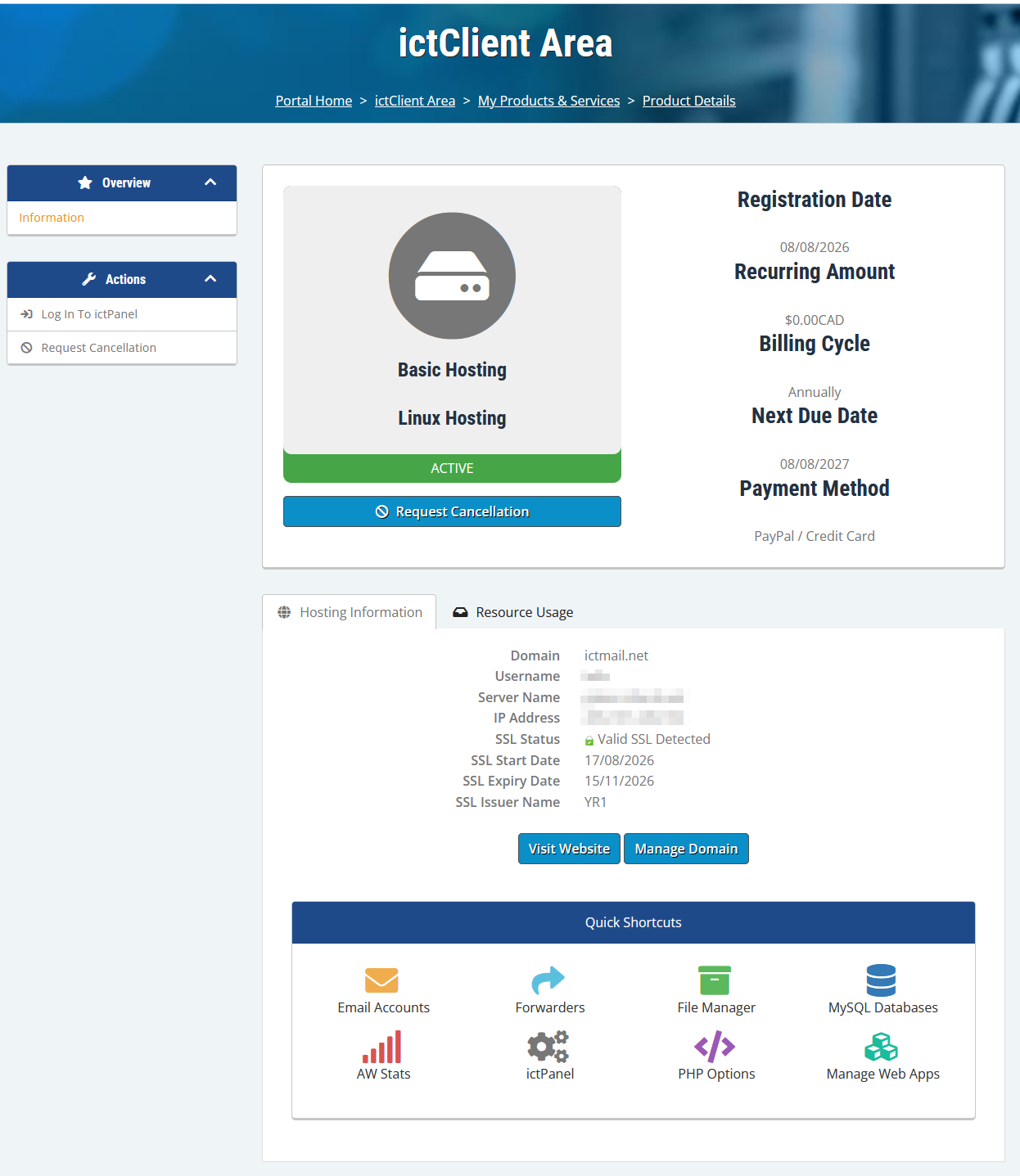
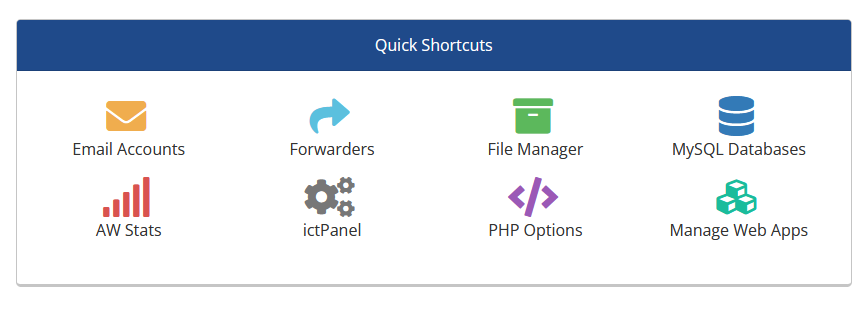
Available Shortcuts
Each shortcut opens the related ICT feature in a new tab or window.
ictPanel
Click **ictPanel** to log in to the main ICT control panel. A new browser tab or window opens and takes you directly to the ICT dashboard for your domain.
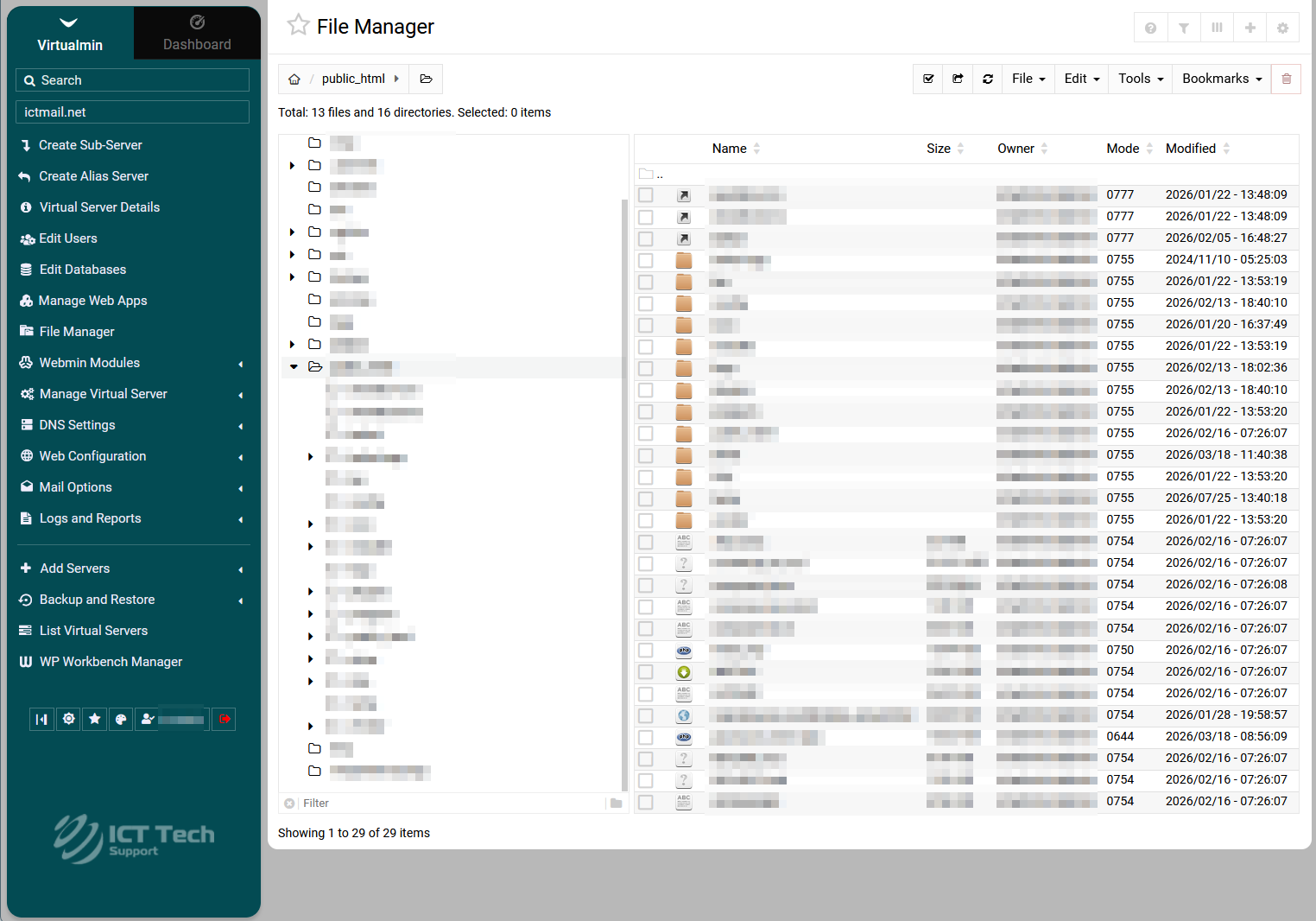
File Manager
Click **File Manager** to open the ICT file manager for your domain. This lets you view, upload, and manage files in your `/public_html` directory and other allowed folders.
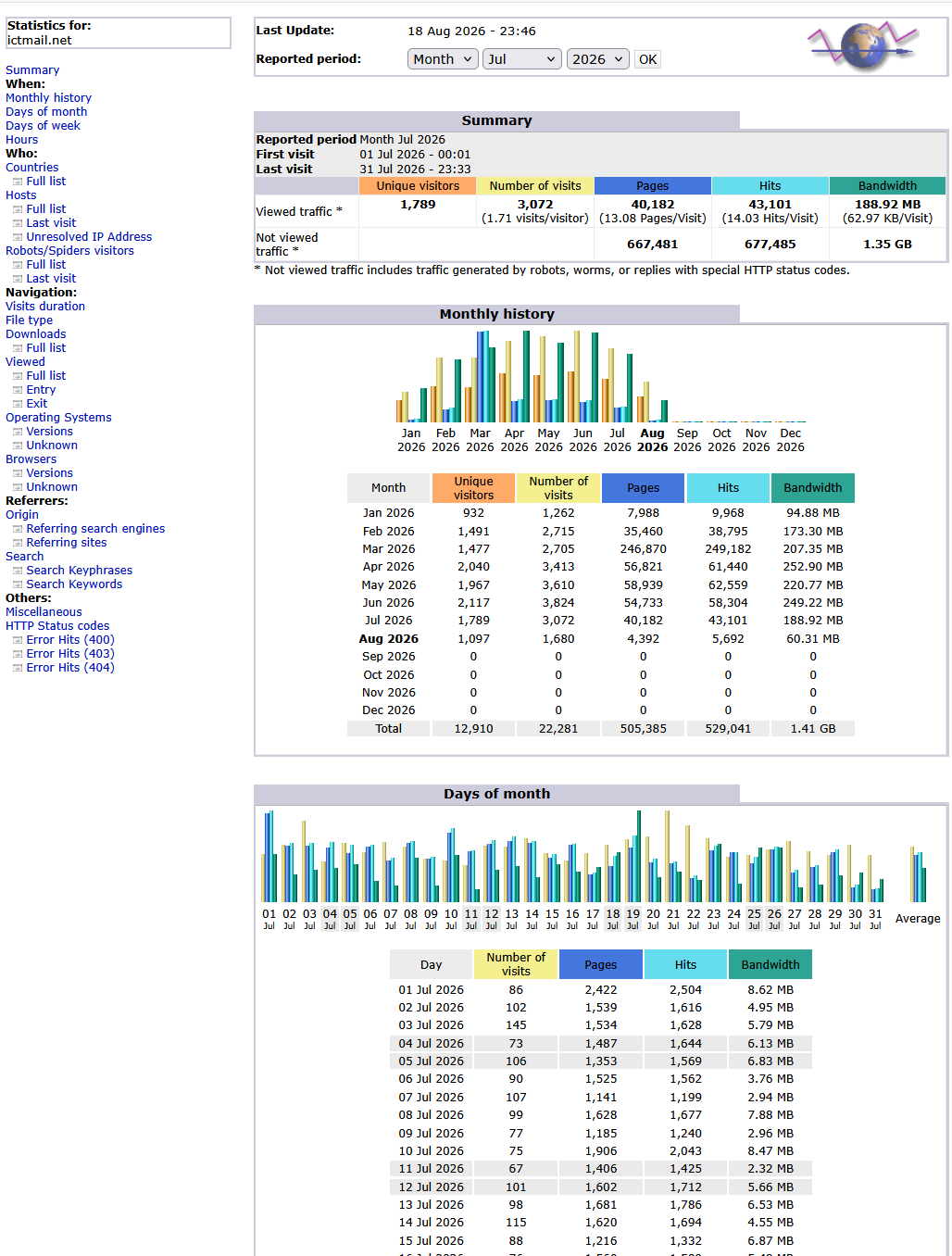
AWStats
Click **AWStats** to view your website traffic and visitor statistics for the domain. The AWStats page opens directly in ICT.
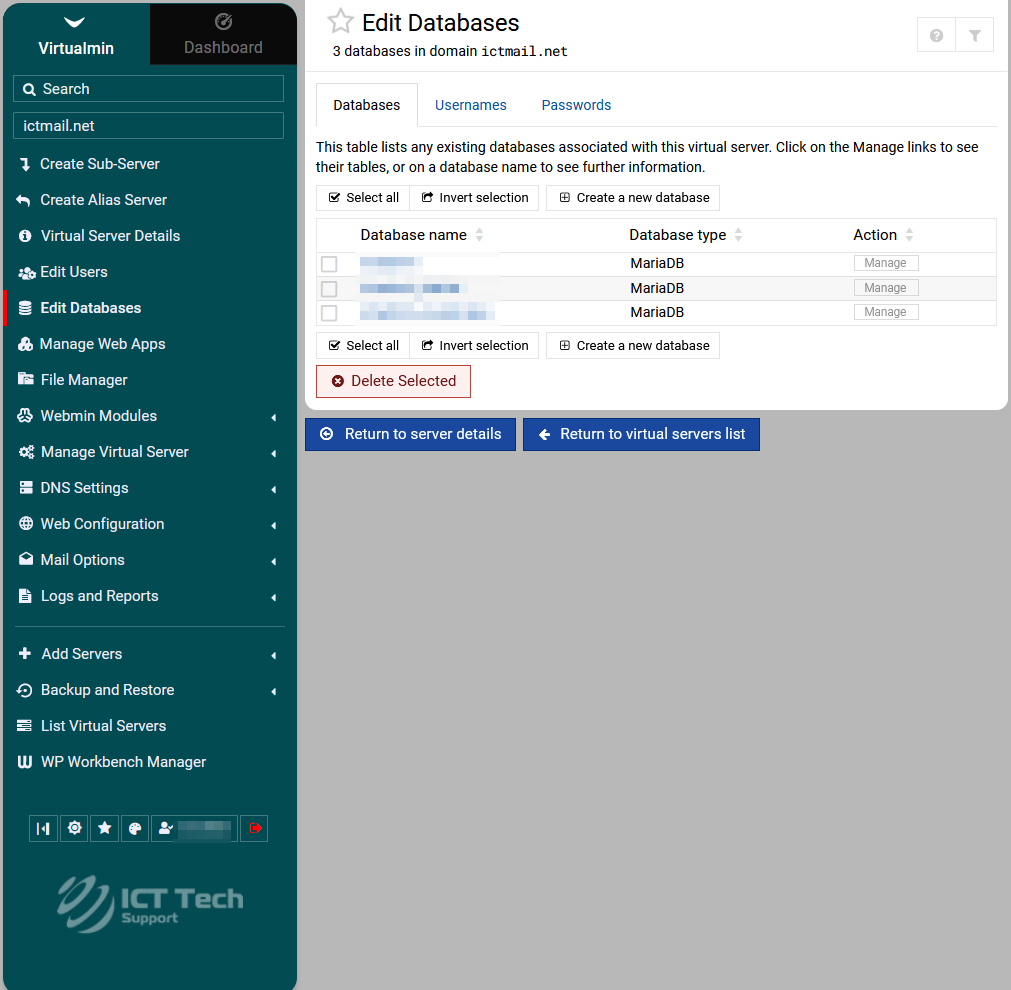
MySQL Databases
Click **MySQL Databases** to open the list of databases associated with your domain. From there you can create, edit, and remove databases and users.
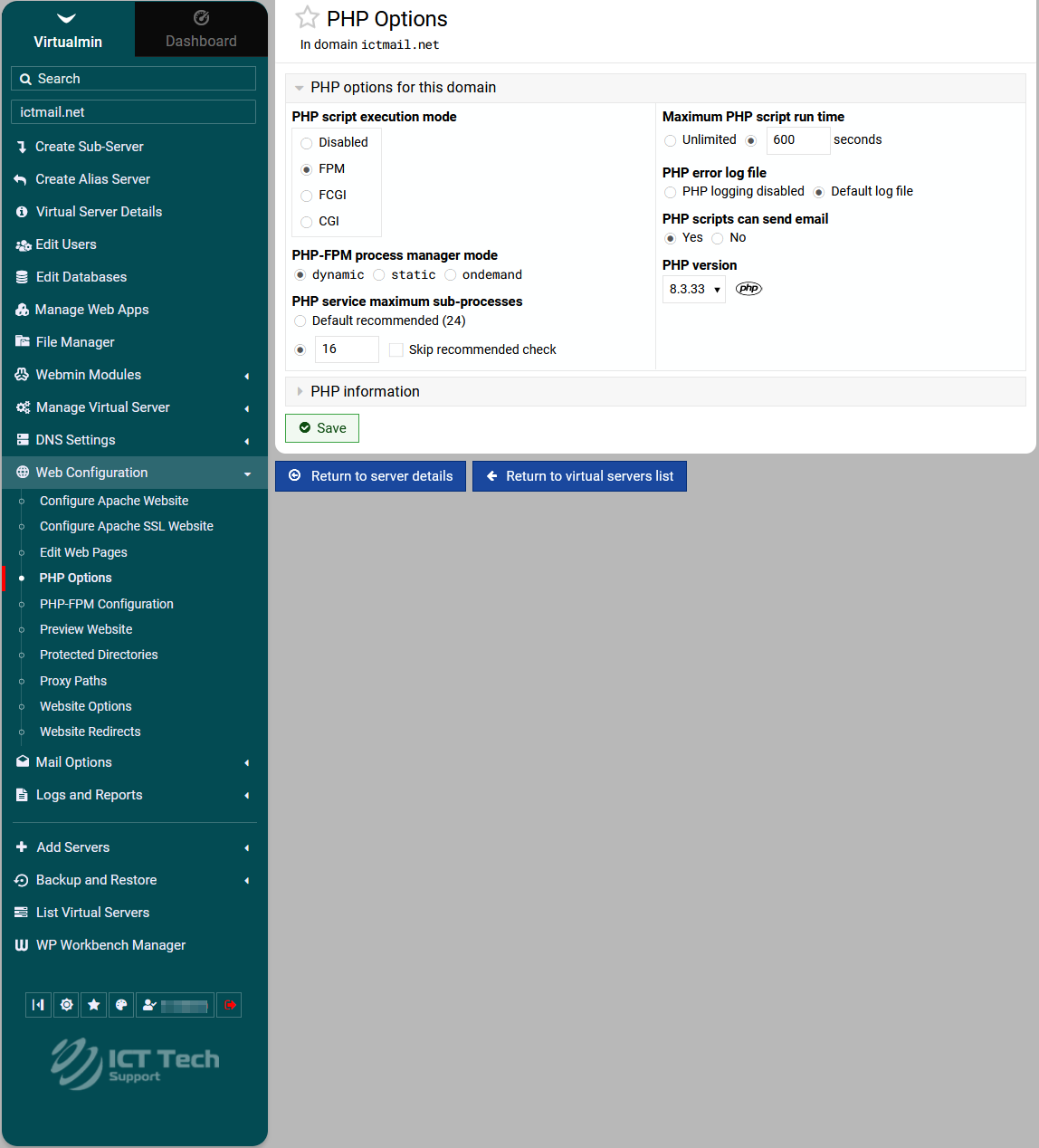
PHP Options
Click **PHP Options** to open the PHP version and execution mode settings for your domain. Use this to change PHP versions or execution modes as supported by your server.
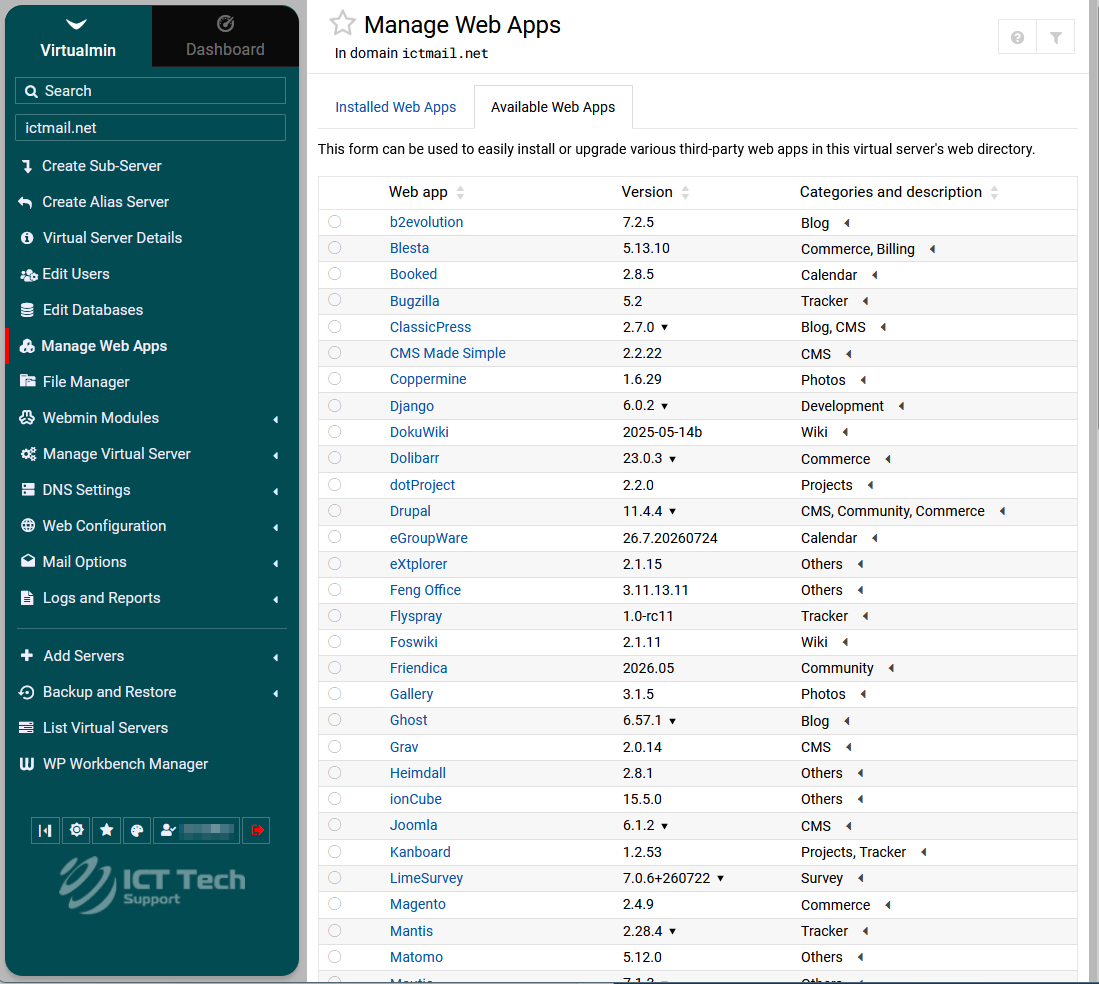
Manage Web Apps
Click **Manage Web Apps** to open the ICT web application installer. From there you can install and manage applications such as WordPress.
Popup/Login Behaviour
Some shortcuts use a one-click ICT login session. When you click a shortcut:
1. A small popup window may briefly appear while the login session is created.
2. The feature then opens in a new browser tab.
3. The popup automatically closes.
If your browser blocks popups, you may be asked to allow them. Quick Shortcuts require popups to be enabled for `www.icttech.ca` and your ICT server hostname.
Notes
- Each shortcut logs you in with a fresh ICT session.
- You can return to the ictClient Area tab and click another shortcut at any time.
- If you see a "Security Warning" or referer error page, your server has not yet been configured to trust the ictClient Area hostname. Contact support to have the necessary trusted-referer settings added to your ICT server.
- The exact features and menus available depend on your hosting plan and server configuration.
---
If you need help with any of these steps, please [open a support ticket